Windows 10 + 11
PXF Studio is currently built for Windows 10 and Windows 11 desktop PCs. It is not a Mac, Linux, Android, iPhone, or browser app.
Windows Desktop Creative Studio
A local-first creative workspace for drawing, importing, editing, organizing, previewing, and exporting monochrome SVG artwork, icon packs, and fonts.
pxfStudio Free is a Windows desktop creative app. Here are a few helpful details about installation, supported devices, local projects, and support.
PXF Studio is currently built for Windows 10 and Windows 11 desktop PCs. It is not a Mac, Linux, Android, iPhone, or browser app.
Get pxfStudio Free through its official Microsoft Store listing. The Store handles the installation process, so you no longer need to download a separate setup file from this website.
The official pxfStudio Free download is available on Microsoft Store. Avoid unofficial mirrors, repackaged installers, or redistributed copies.
pxfStudio projects are saved locally on your computer as .pxf files. Visit Pixel’N’Code for product information, updates, and contact options.
pxfStudio Free is available on Microsoft Store.
Take a quick look at the creative workspace, drawing tools, project organization, and export options inside pxfStudio Free.
Watch Queen Nila introduce PXF Studio’s local-first creative workspace, from drawing and shaping SVG artwork to organizing icons and preparing custom font projects—all inside pxfStudio Free.
Follow the creative process from the first mark on the canvas to finished SVG artwork, organized asset packs, and installable fonts.
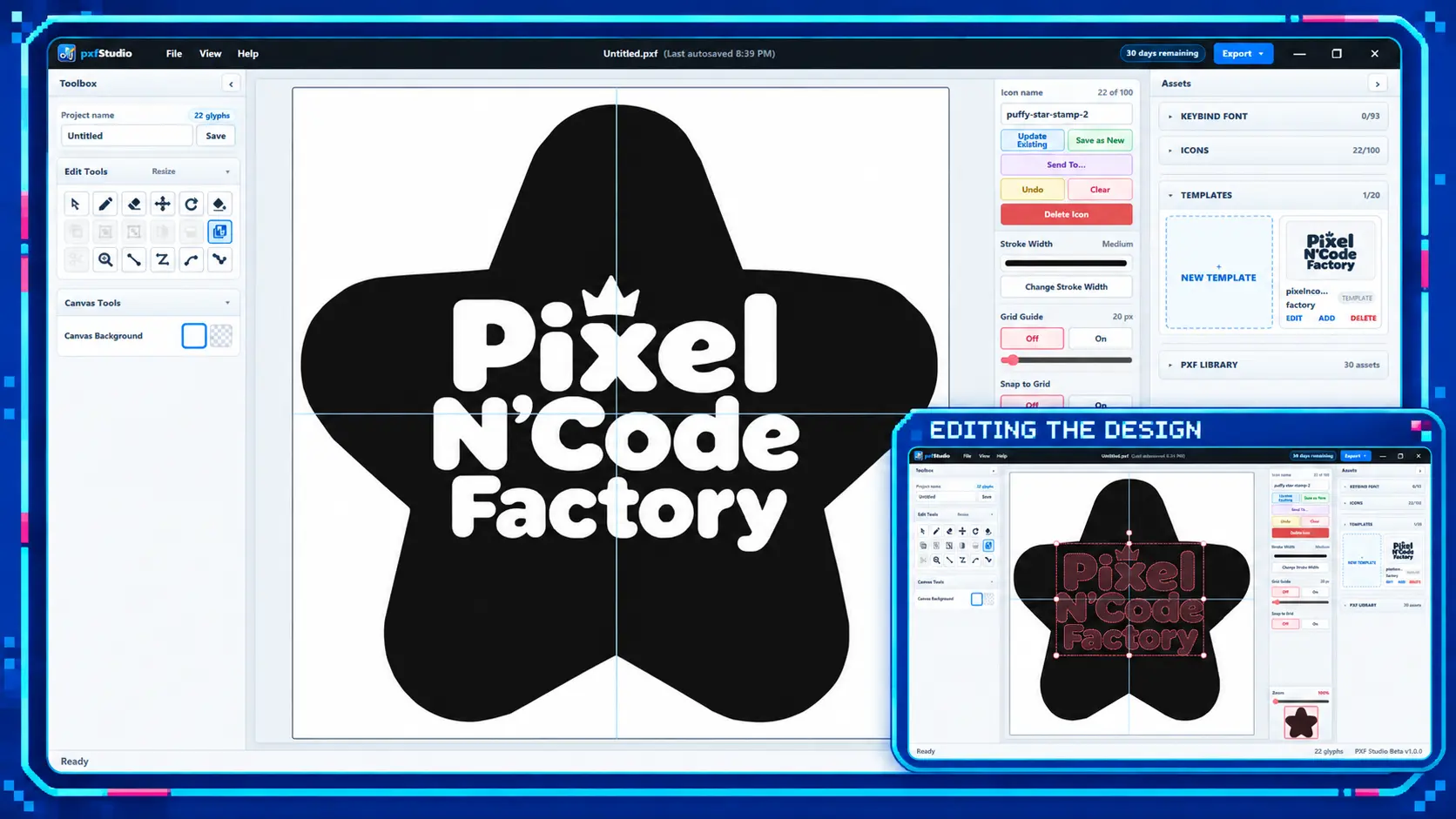 pxf-walkthrough-01-canvas.webp
PXF Studio keeps the creative work front and center. Draw freehand, build artwork from shapes and lines, then select, move, resize, rotate, duplicate, flip, group, or cut pieces until the design feels right. The canvas is made for practical monochrome SVG creation without burying the process beneath a complicated interface.
 pxf-walkthrough-02-organize.webp
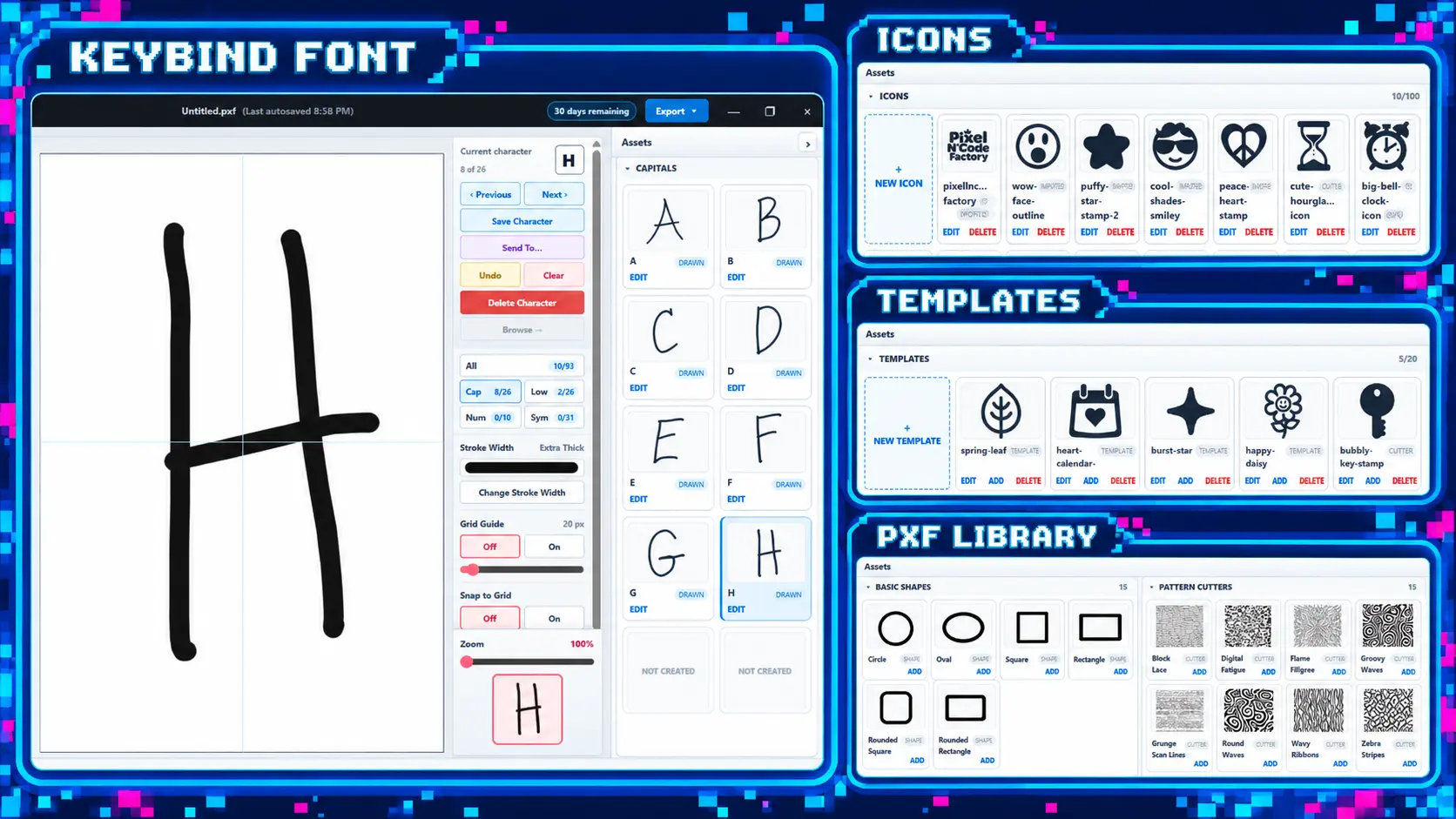
One workspace can hold several kinds of reusable artwork. Assign letterforms and symbols to keyboard characters, collect standalone designs inside Icons, and save useful shapes or custom cutters as Templates. Each group stays organized in the Assets dock so the pieces you need remain easy to find and reuse.
 pxf-walkthrough-03-import.webp
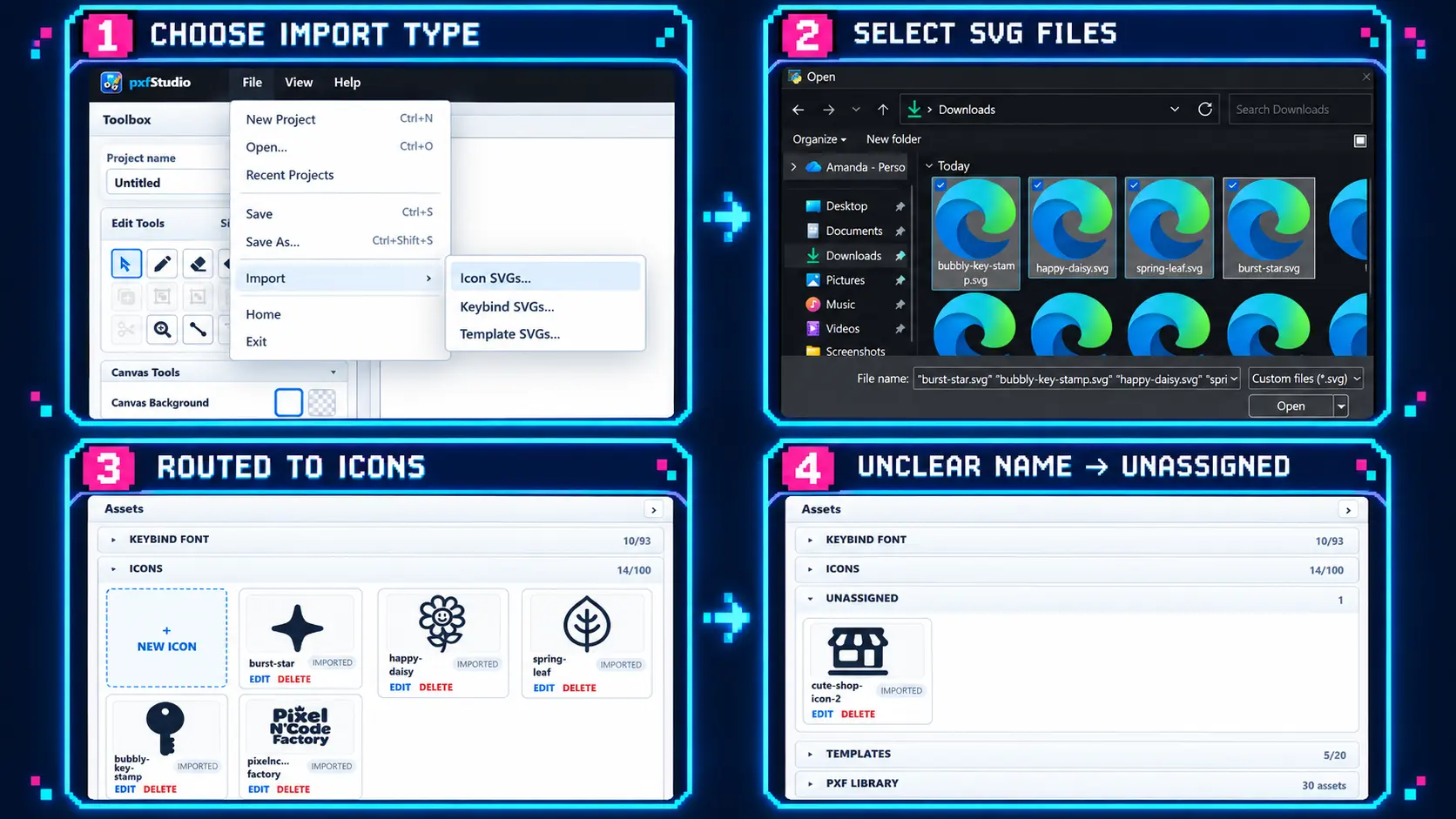
Bring monochrome SVG files into the project as icons, keyboard characters, or reusable templates. Supported filenames can help route keybound artwork automatically, while anything uncertain remains available for review instead of being silently placed in the wrong slot.
 pxf-walkthrough-04-preview.webp
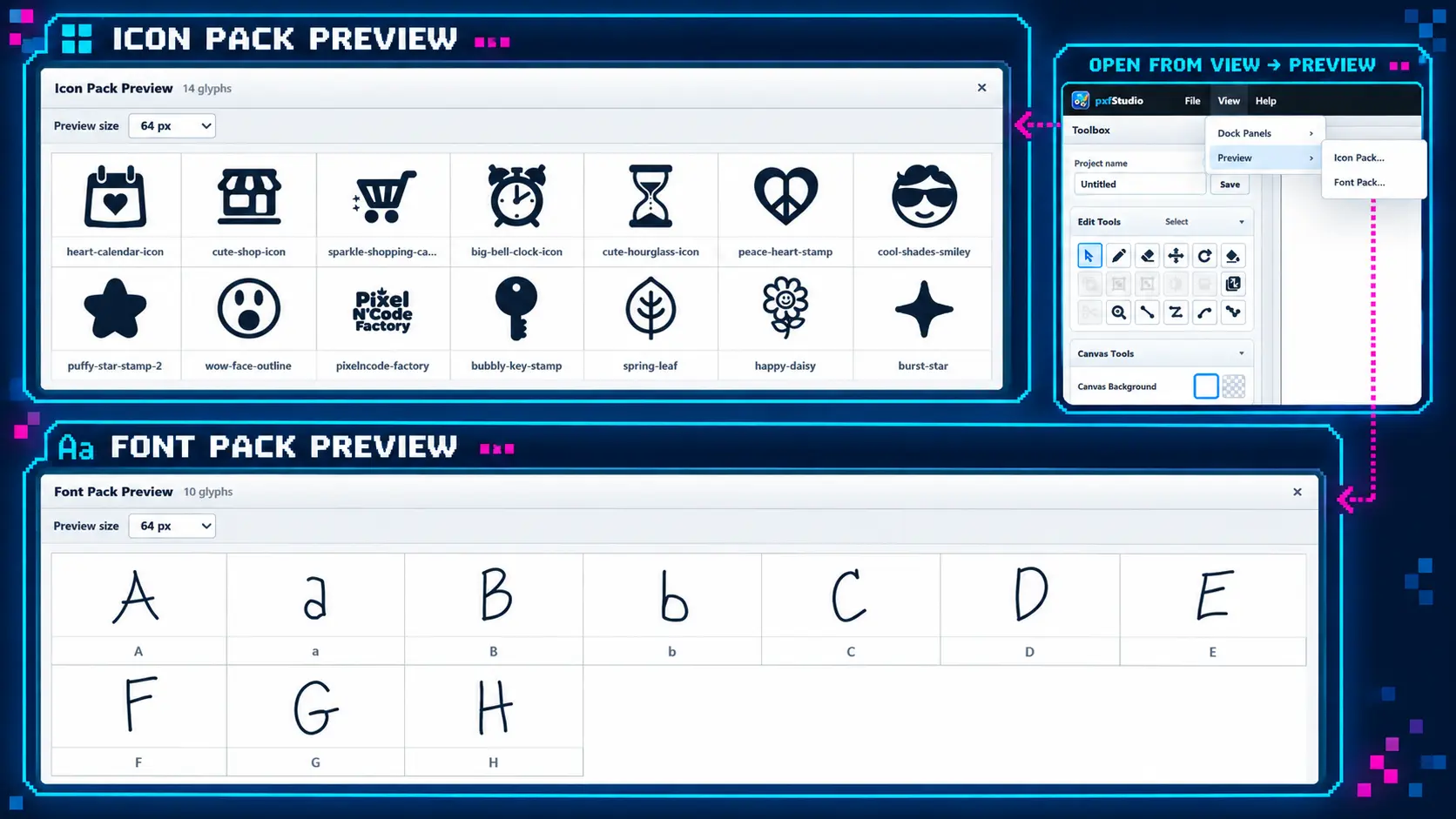
Open a visual preview of the full icon or font pack before exporting it. The live preview updates alongside the project, making it easier to notice an uneven glyph, missing assignment, or design that needs another pass while everything is still open and editable.
 pxf-walkthrough-05-export.webp
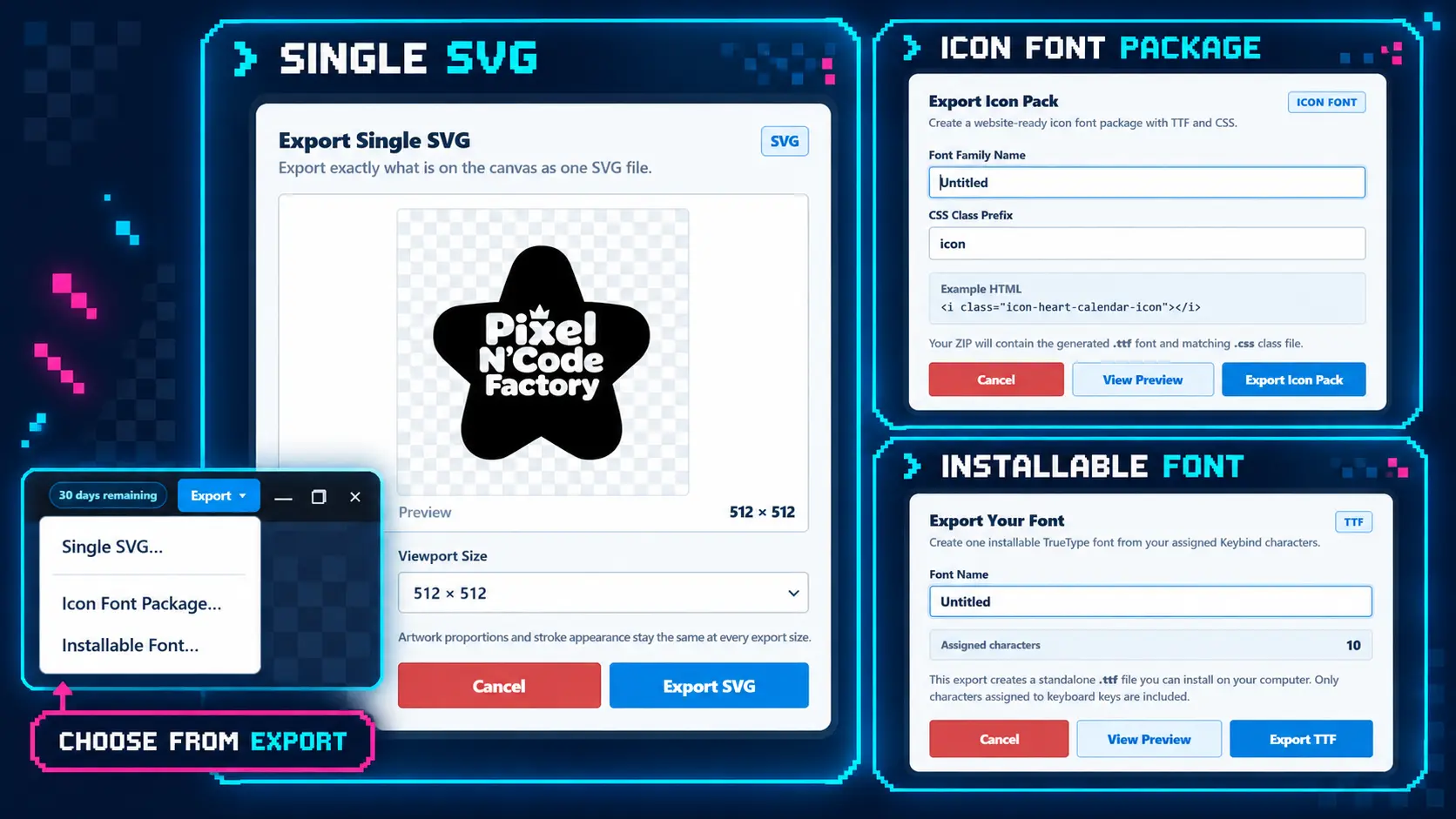
Export individual SVG artwork at the size you need, build an icon-font package for web projects, or generate a keyboard font that can be installed on a compatible computer. The export tools turn the artwork organized inside the project into files ready for use beyond PXF Studio.
 pxf-walkthrough-06-magic-tools.webp
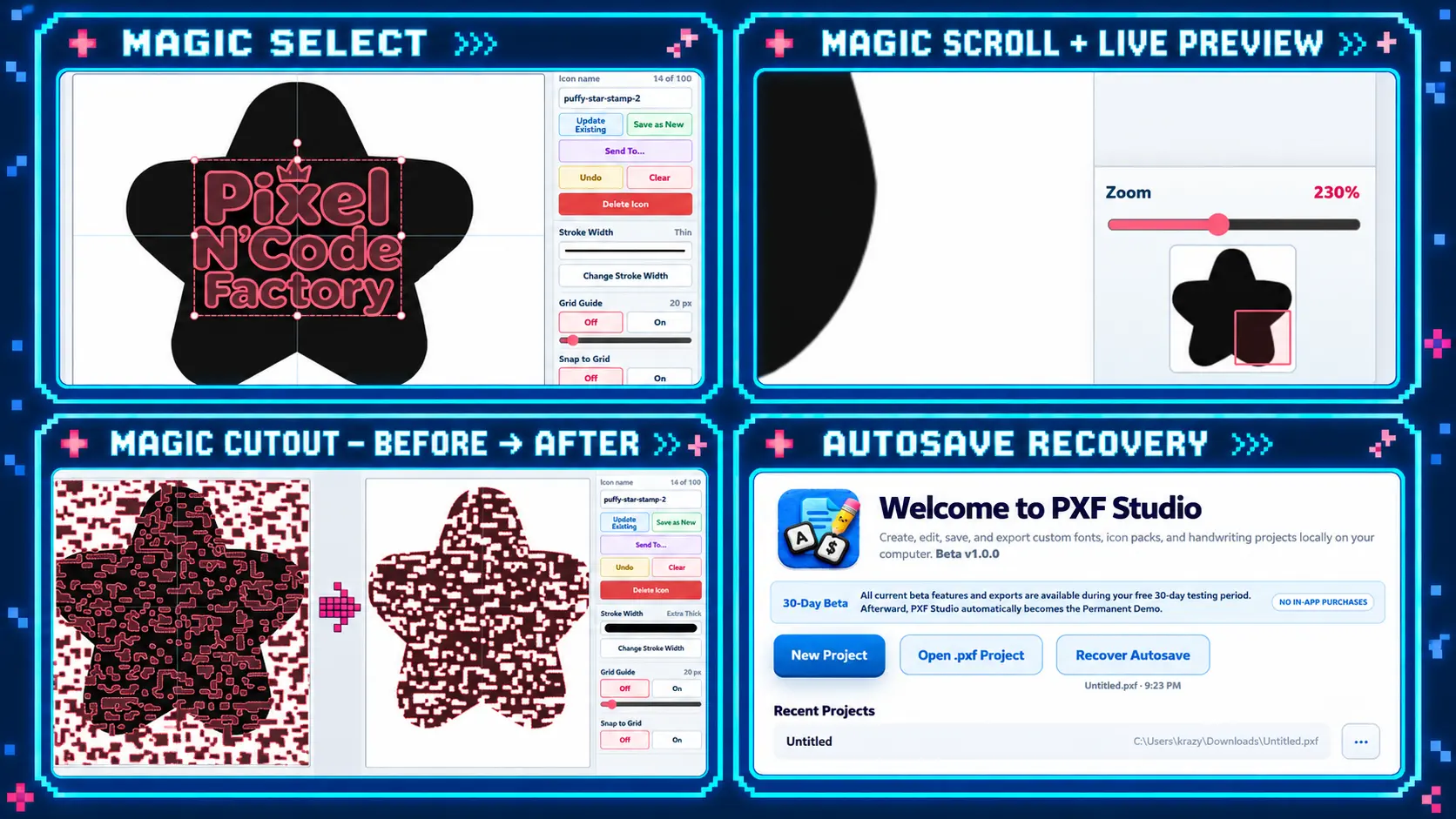
Magic Select can reach artwork hidden beneath other shapes. Magic Scroll zooms toward the exact point beneath the cursor. Magic Cutout turns selected artwork into a cutter for the shapes underneath it. Autosave recovery protects unfinished work, while the live preview mirrors project changes as they happen.
Explore the creative tools built into PXF Studio for SVG drawing and editing, font creation, icon design, reusable assets, local projects, and Windows-based creative work.
Select, move, resize, rotate, and multi-select SVG artwork by its actual shape, including objects hidden beneath overlapping artwork.
Create SVG artwork with Pencil, Eraser, Bucket Fill, straight lines, zigzags, curves, and Multi-Curve drawing tools.
Draw directly in PXF Studio on compatible Windows touchscreen computers using a finger or stylus.
Create negative-space designs with Magic Cutout using shapes, lettering, symbols, imported SVGs, and reusable pattern cutters.
Import existing SVG files, place them on the canvas, and continue editing, resizing, rotating, grouping, or reusing the artwork.
Group compatible artwork, ungroup SVG parts, duplicate objects, and flip designs horizontally or vertically while building compositions.
Adjust stroke width, switch canvas background views, zoom and pan, and use center or alignment guides while refining artwork.
Build installable keyboard fonts and automatically assign correctly named SVG files to uppercase, lowercase, number, and symbol slots.
Create individual SVG icons, organize full icon sets, preview them together, and prepare icon-font package exports from the same workspace.
Organize Font Characters, Icons, Unassigned SVGs, reusable Templates, and built-in PXF Library artwork in one creative studio.
Move or copy artwork between Font Characters, Icons, Templates, Unassigned SVGs, and library workflows without rebuilding the same design.
Save projects locally as .pxf files and export finished SVG artwork, fonts, icon packages, and other supported project outputs from Windows.
Get pxfStudio Free through Microsoft Store and start creating SVG artwork, icon sets, and custom font projects on your Windows PC.
Create SVG artwork, icon sets, and custom font projects with pxfStudio Free, a local-first creative workspace for Windows.
Official download: pxfStudio Free is only available through the Microsoft Store.
Tell our little factory helper what went wrong.